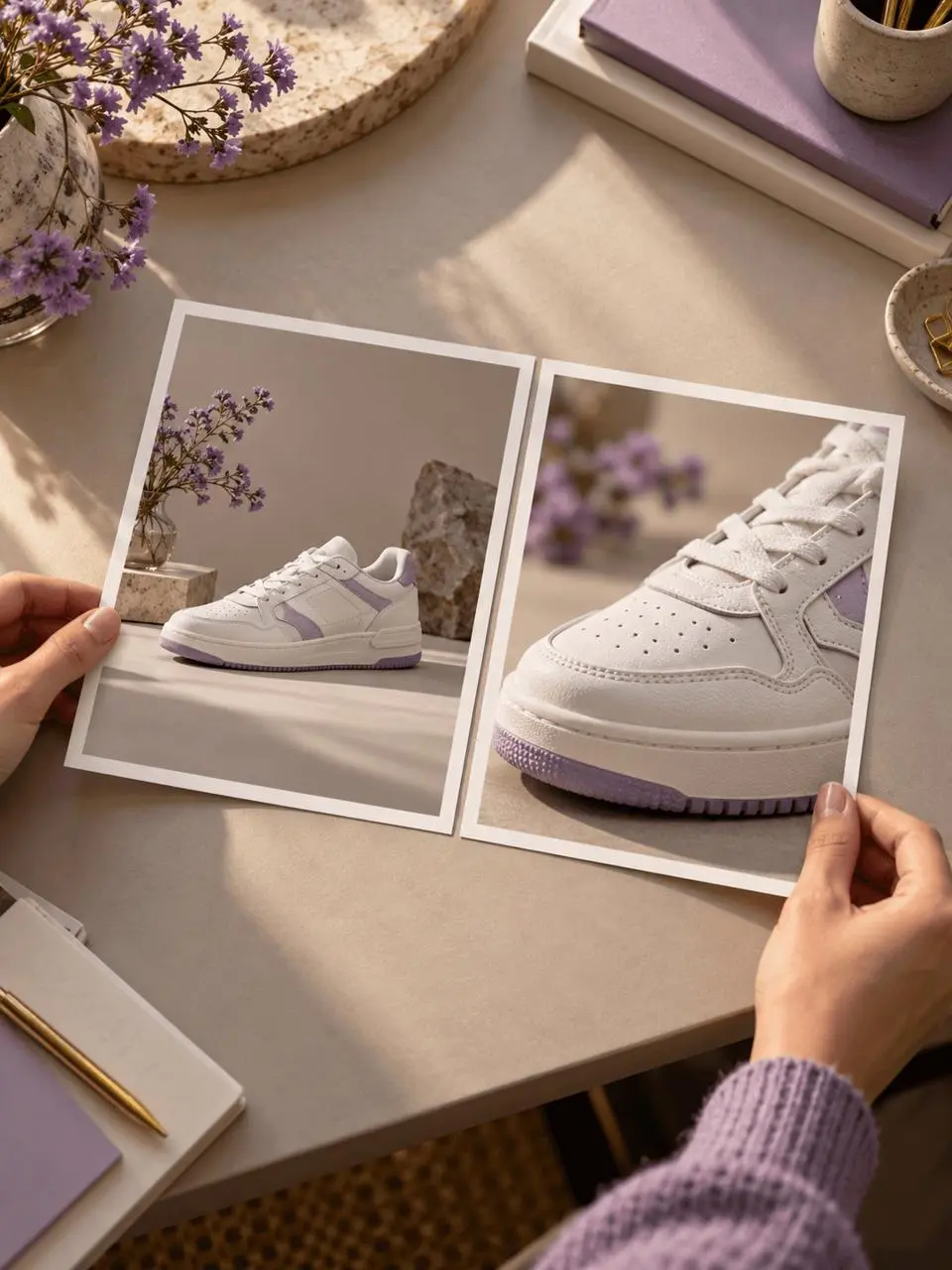
Set the beginning and end of a shot
Use Kling 3.0 when your brief starts with frame composition. Supply clear first and last frames that can connect through a plausible movement.

Choose between shot generation, reference-led work, and motion transfer. Compare the inputs and controls before opening a Kling workspace.
Choose between shot generation, reference-led work, and motion transfer. Compare the inputs and controls before opening a Kling workspace.
Choose the workflow that matches your starting material and the result you need.
Use Kling 3.0 when your brief starts with frame composition. Supply clear first and last frames that can connect through a plausible movement.

Use Omni or O1 to identify which reference defines the subject, scene, or movement. Start with one requested change before expanding the brief.
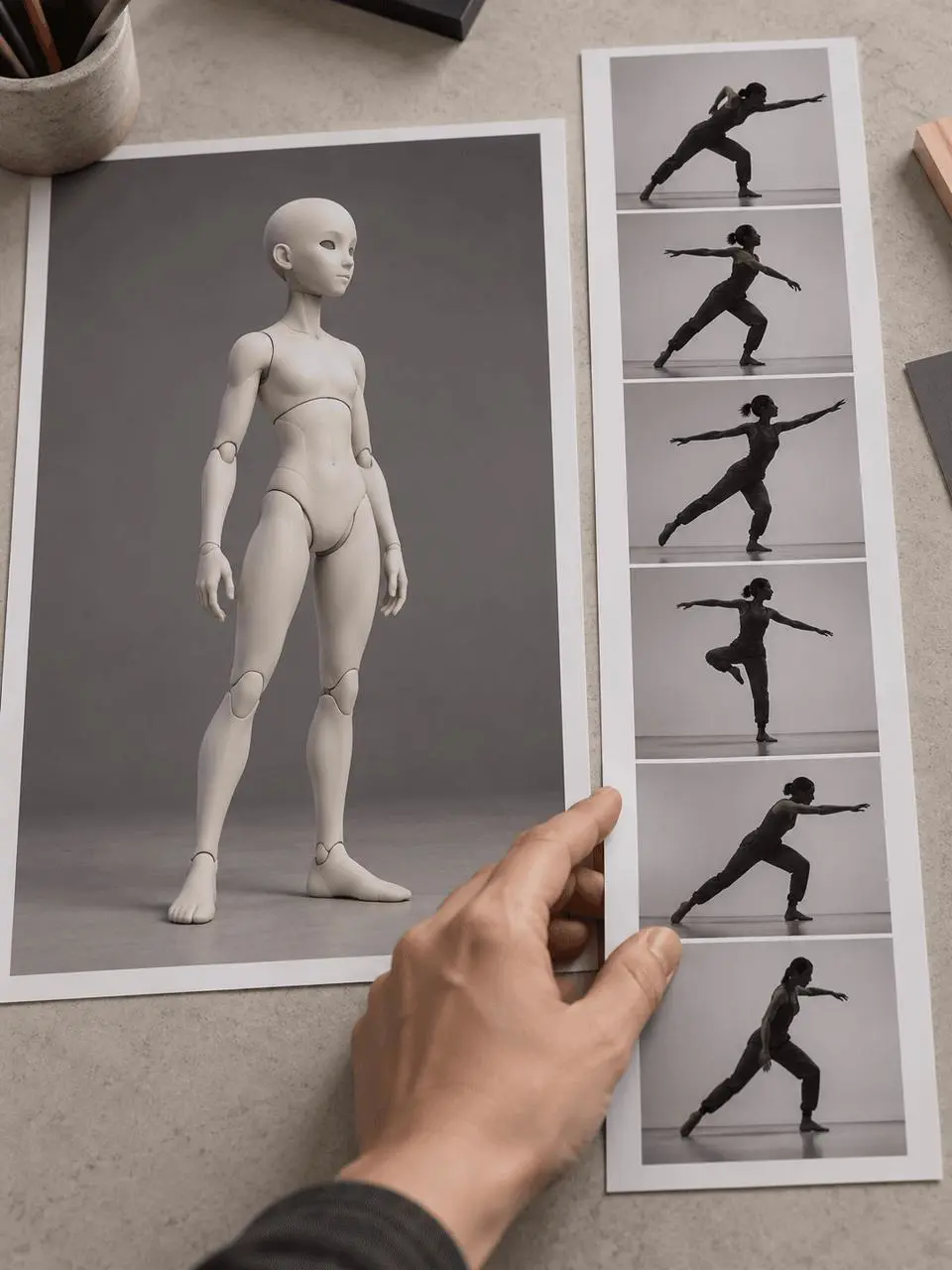
Choose Motion Control when you already have both a character image and a motion clip. Prepare both inputs before opening the task.
Kuaishou
Compare the available inputs and task fit. Check the selected workspace for current settings before generating.
| Model / entry | Input or reference | When to review it | Action |
|---|---|---|---|
| Kling 3.0 | Prompt; first and last frames | Plan a shot with a start frame and an optional end frame. | |
| Kling V3 Omni | Image, video and Elements references | Build a shot or a reference-led editing task with explicit asset roles. | |
| Kling O1 | Image/video references and prompt instructions | Work from referenced assets and compare the response to focused instructions. | |
| Kling Motion Control | A character image and a motion-reference video | Transfer the movement of a reference clip to the supplied character. |
Review real inputs and generated outputs alongside their complete prompts.
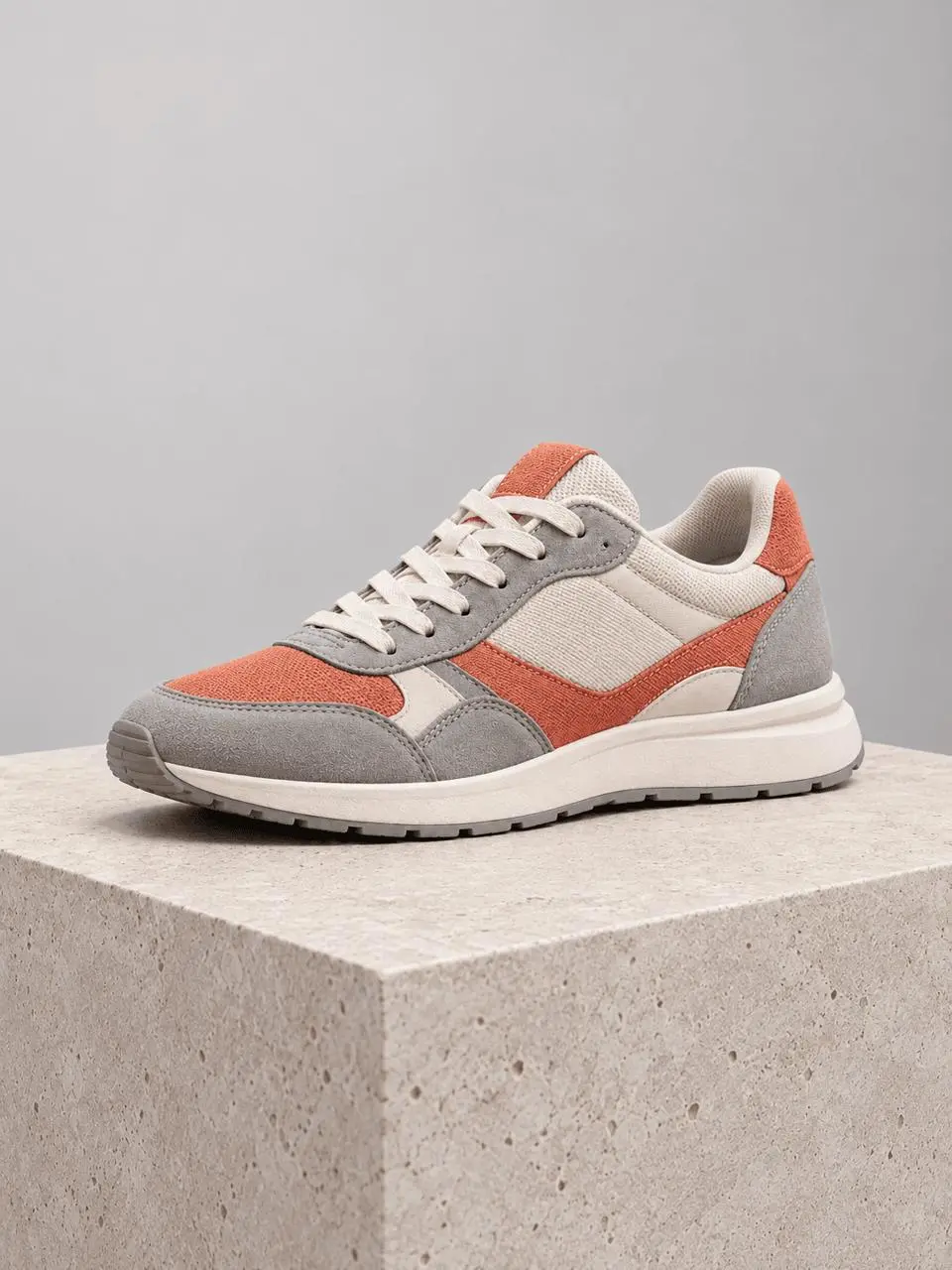
Image supplied to the WeShop AI video generator, before generation.
Start from the supplied sneaker image. Pull the camera back slowly to reveal the full product while keeping the shoe silhouette, stitching, sole, and orange-gray color panels consistent. Neutral studio lighting, no additional objects.
Single sneaker image reference; not a first-and-last-frame run.
Start from the supplied sneaker image. Pull the camera back slowly to reveal the full product while keeping the shoe silhouette, stitching, sole, and orange-gray color panels consistent. Neutral studio lighting, no additional objects.
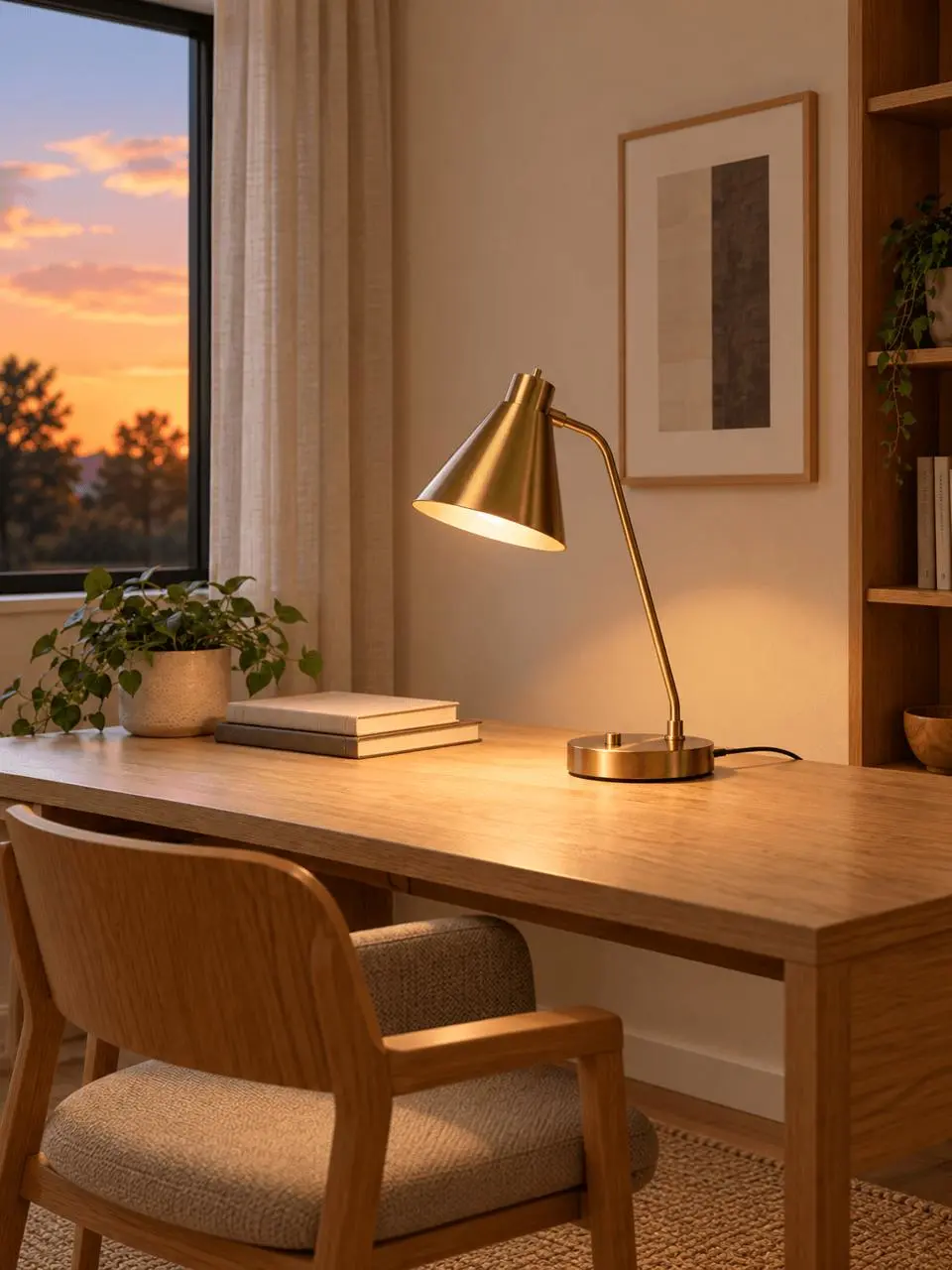
Image supplied to the WeShop AI video generator, before generation.
Use the supplied portrait desk-lamp image as the subject reference. Make a vertical portrait video. Keep the entire lamp visible, with its shape, switch position, and framing recognizable while the surrounding room gradually becomes a warm minimal interior. One continuous camera move, no additional objects around the lamp.
Single lamp image reference; not a video-plus-image revision run.
Use the supplied portrait desk-lamp image as the subject reference. Make a vertical portrait video. Keep the entire lamp visible, with its shape, switch position, and framing recognizable while the surrounding room gradually becomes a warm minimal interior. One continuous camera move, no additional objects around the lamp.
Prepare your brief and source assets, check the current controls, then inspect the generated result.
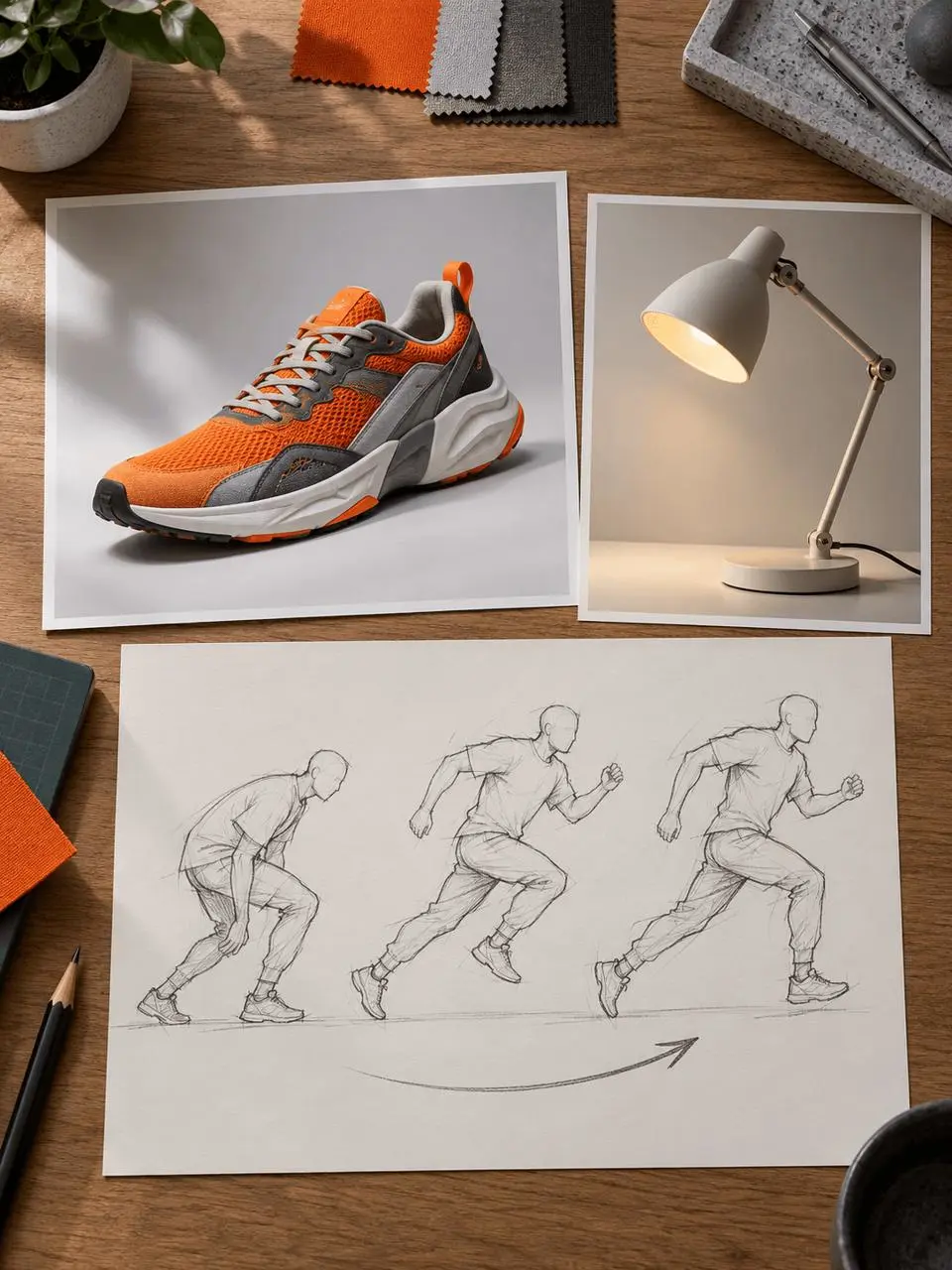
Choose between frame-led generation, referenced assets, and motion transfer.
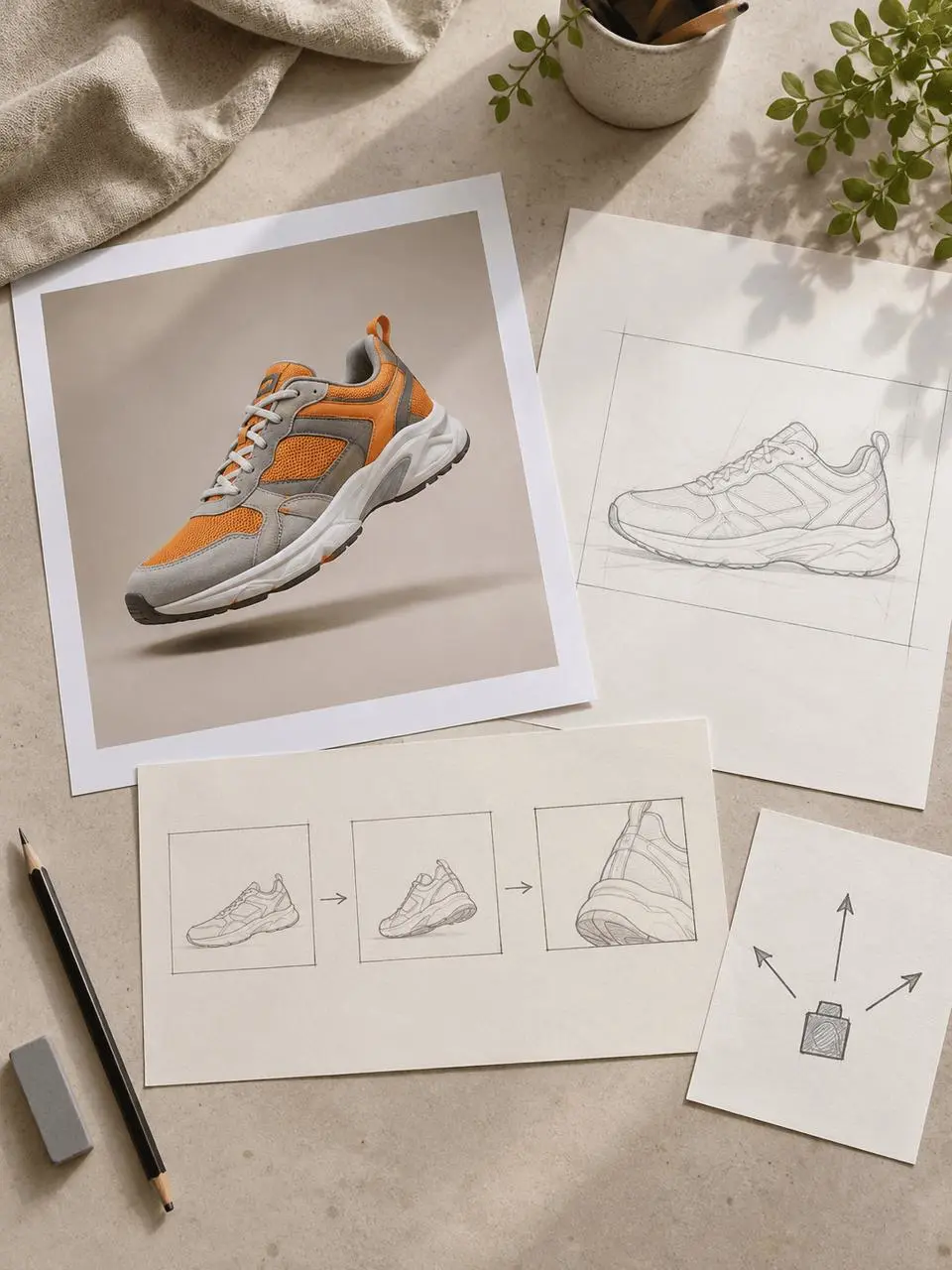
Gather the frames, reference clips, or character image required by that workflow.
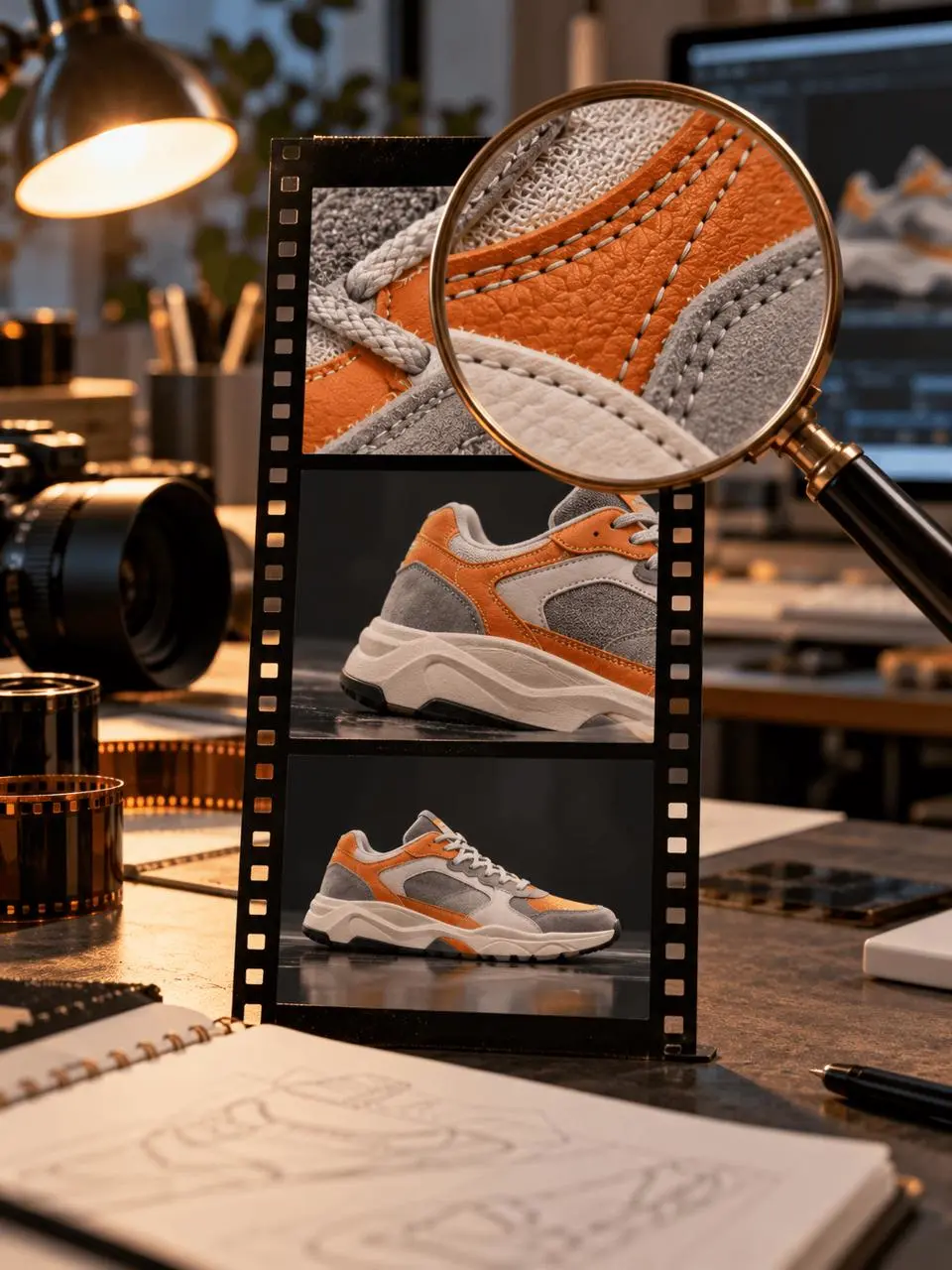
Check the selected duration, audio, and point cost before creating a test shot.
Open the relevant workspace or supporting workflow to continue your task.
Direct answers about model inputs, workflows, settings, and availability.
It uses a different input workflow: a character image and a motion-reference video. Choose it when the movement is already available in a clip; use the other Kling workspaces to develop a shot from a prompt or visual references.
Use the 3.0 workspace when first and last frames fit the task. Consider Omni for a workflow built around image, video, or Elements references. Review the controls on the destination page to match them to your brief.
Kling 3.0 and V3 Omni display a Generate Audio control. Check its current value before generating; the Omni workspace displayed it turned off during this review.
Use an input task that both selected workflows support, match the shared settings, and record the prompt and point cost. Evaluate subject consistency, instruction following, and shot continuity in the actual outputs.